
Little Wins help
Watch the Little Wins tutorial or read how to plan routines, track progress, redeem rewards and use Home Screen widgets.
About Little Wins
Getting Started
Create a routine
From Today, tap + and choose Routine. Give it a name, set its schedule and add the sessions you want to track.
Complete, undo or skip sessions
Tap a routine to reveal its sessions, then check off the sessions you finish. Use Undo completion to reverse a check-off. To take a day off, choose Skip for Today from the routine menu. Open Skipped Today to restore the routine.
Check your progress
Open Progress to review your activity and achievements. Completed sessions earn coins you can spend on rewards.
Create and redeem a reward
In Rewards, add a custom reward and set its coin cost. Once you have enough coins, tap Redeem on the reward and confirm.
Learn to Use Little Wins
Learn how to schedule routines, track your progress, earn rewards and complete sessions from your iPhone Home Screen.
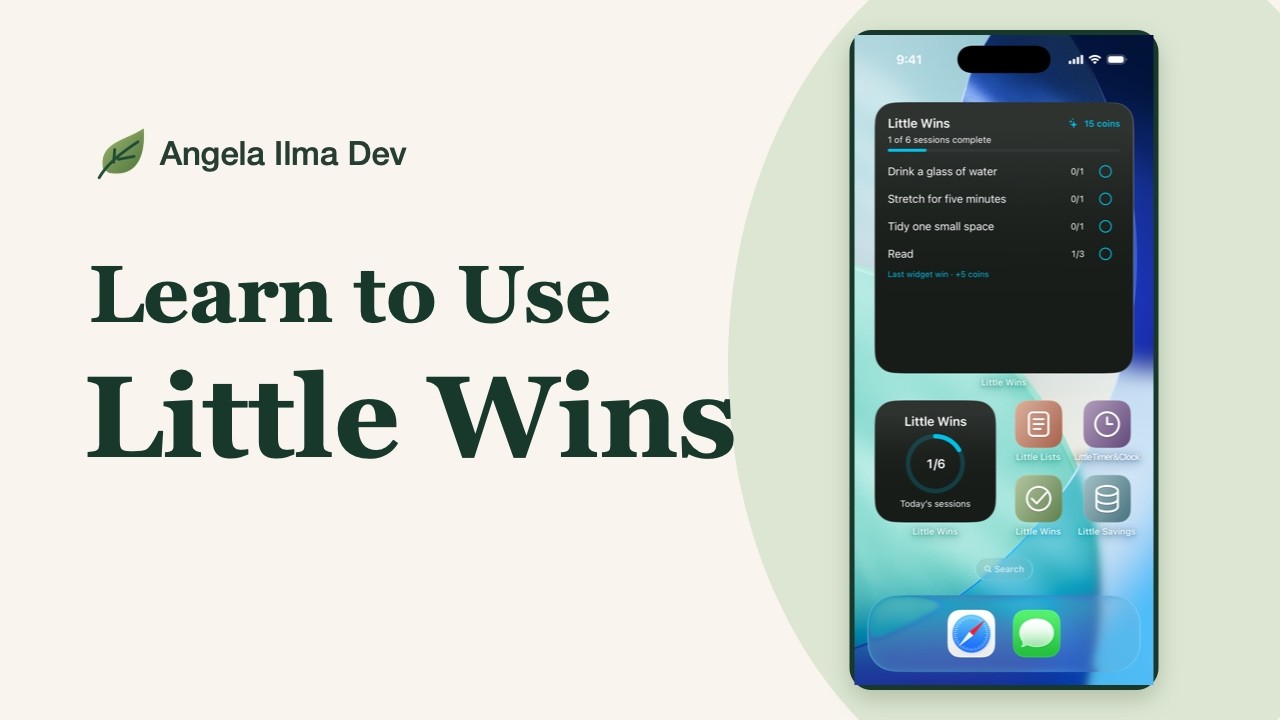
Tap a chapter to watch it here.
Routines and sessions
Progress and rewards
Editing and appearance
Home Screen widgets
Widgets & Customisation
Add a widget
Touch and hold an empty space on the iPhone Home Screen. Tap Edit, then Add Widget, search for the app, swipe to choose a size and tap Add Widget. Tap Done when finished.
Choose a size
Small shows your daily progress. Medium and large show routines and coin balance. Tap an eligible checkbox on medium or large to complete one session.
Change colours
Open Settings → Colour theme to change the app palette. Botanical and Monochrome are free. The widgets use the selected Little Wins theme.
Stack widgets
In Home Screen edit mode, drag a widget onto another of the same size. Swipe the stack to switch widgets. See Apple’s guide to adding widgets and editing stacks.
Plus & Troubleshooting
Compare Free and Plus
Free includes up to five active routines, three custom rewards, two colour themes and all three widgets. Plus removes the active routine and custom reward limits and includes all six themes.
Check a missing routine
Check the selected date and the routine’s schedule. If you skipped it for the day, look in Skipped Today.
Buy or restore Plus
In Settings, open Explore Little Wins Plus or Manage Plus. Follow the App Store prompts to buy, or tap Restore Purchases using the Apple Account that made the purchase.