
Little Timer help
Read the step-by-step Little Timer guide or watch the iPhone tutorial. Covers the Clock, timers, favourites, widgets, alarms, stopwatch, metronome and Plus. This guide describes Little Timer version 1.0.
About Little Timer
Getting Started
Find your way around
Use the five tabs at the bottom: Clock, Timers, Alarms, Stopwatch and Metronome. Open the gear button for Settings.
Choose a clock style
On Clock, swipe horizontally across the time to change styles. The dots show the selected style. You can also choose a clock style in Settings. Modern Digital and Retro LED are free; additional styles require Plus.
Start a countdown
Open Timers and tap a Quick Start duration, or tap + → New timer to set your own duration. Start the timer, then use Pause, Resume and Stop as needed. Several timers can run independently.
Save a timer for later
In Timers, tap + → New saved timer. Set its name and duration, then choose Save or Save and start. Saved presets appear under My timers; use the three-dot menu to edit them.
Keep favourite timers on Clock
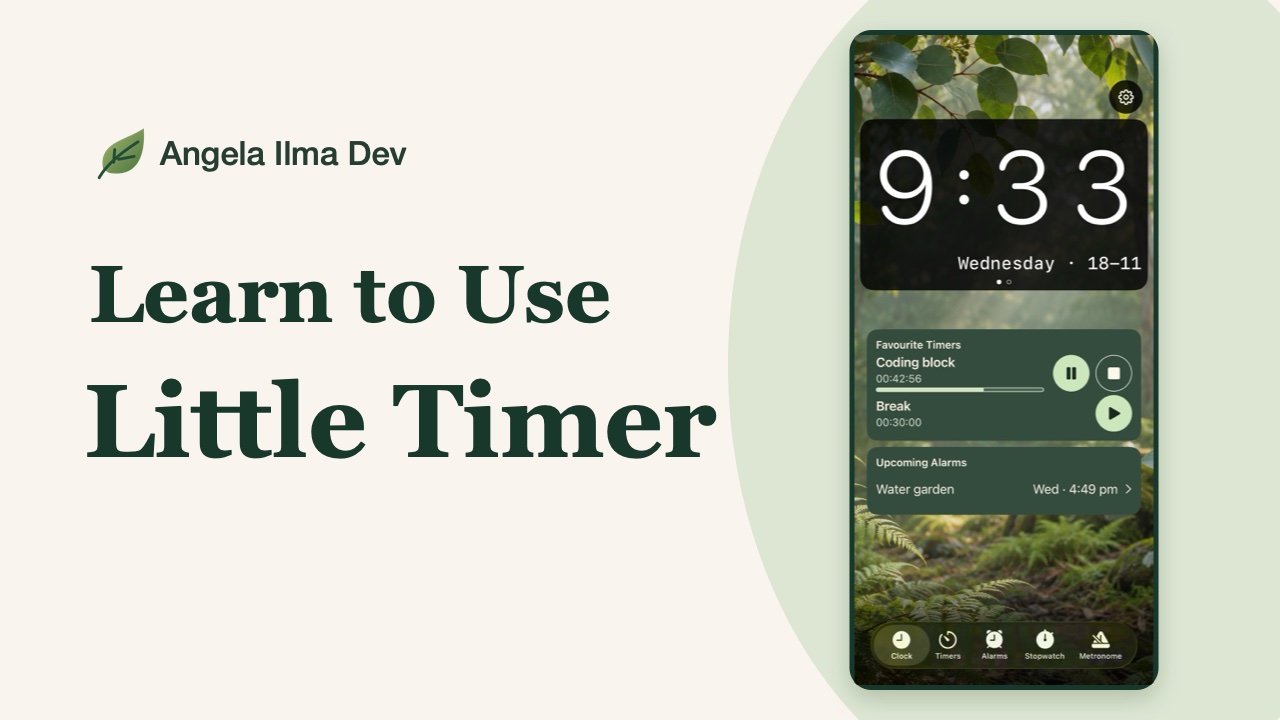
Tap the heart beside a saved timer in My timers. Up to four favourites appear beneath the portrait clock, in saved-timer order. Use Play, Pause, Resume and Stop there. Stop resets that running timer without deleting the preset or its favourite status. Landscape keeps the full-screen clock.
Create a multi-set timer with Plus
Open New saved timer and add the steps and breaks you need, with a name and duration for each. Choose Save or Save and start. Free users can explore the editor, but saving a multi-set timer requires Plus.
Create and manage alarms
Open Alarms and tap +. Choose a one-time date and time or a repeating weekly schedule, and set the label, sound and snooze options. Choose Save and arm to enable it, or save without arming. Use the alarm’s three-dot menu for Edit, Turn On or Turn Off, and Remove.
Pause all alarms
Turn Alarms Active off to suspend Little Timer alarms without losing their individual enabled settings. Turn it on to resume enabled alarms. This does not change alarms in Apple’s Clock app.
Use the stopwatch
Open Stopwatch and tap Start. Use Lap to record a split, Pause to stop counting temporarily, Resume to continue, and Reset when you want to begin again.
Use the metronome
Open Metronome, set the tempo in BPM, time signature and subdivisions, then tap Start. Choose the click and accent options you want; tap Stop to finish. Polyrhythms and visual pulse are Plus features.
Learn to Use Little Timer
Explore Little Timer in this narrated iPhone walkthrough: clock styles and backgrounds, countdowns, saved timers, favourites, widgets, alarms, stopwatch and metronome. Recorded on iPhone; some demonstrated options require Plus.
Tap a chapter to watch it here.
Clock and getting started
Timers and favourites
Widgets and alarms
Stopwatch, metronome and Plus
Widgets & Customisation
Add a widget
Touch and hold an empty space on the iPhone Home Screen. Tap Edit, then Add Widget, search for the app, swipe to choose a size and tap Add Widget. Tap Done when finished.
Choose the right widget
Little Timer offers a small Metronome widget and a large Clock Dashboard. There is no medium widget, Timer-control widget or Stopwatch widget in this version.
Use the small Metronome
Tap Start or Stop on the widget to control metronome playback and see the current BPM. It can start independently without first opening the app. Use the app to adjust your metronome settings.
Use the large Clock Dashboard
The dashboard shows the time, active timers and upcoming enabled alarms. Tap it to open Little Timer. It is an overview, not a set of timer Start and Pause buttons. Widget updates are managed by iOS and may take a moment to appear.
Configure a widget
Touch and hold the installed widget and choose Edit Widget to view its available settings. Each widget has its own configuration. The choices depend on the widget you added.
Change themes and appearance
Open Settings → Colour theme. Botanical and Monochrome are free; Coastal, Midnight, Neon and Rose require Plus. You can preview a locked theme before buying. Use Appearance for Light, Dark or Follow System.
Change clock backgrounds
Swipe upward over the Clock to cycle through available photos, plain theme colours and illustrations. Open Settings → Clock wallpaper to browse backgrounds. Locked Plus choices stay restricted; the clock also works with a plain background.
Keep the Clock screen awake
Settings → Keep Screen Awake on Clock prevents automatic locking only while Clock is selected and the app is active. Turn it off for normal Auto-Lock. Switching tabs or leaving the app restores normal locking; you can always lock manually with the Side button.
Stack widgets
In Home Screen edit mode, drag a widget onto another of the same size. Swipe the stack to switch widgets. See Apple’s guide to adding widgets and editing stacks.
Plus & Troubleshooting
Compare Free and Plus
Free includes three saved timers, five saved alarms, unlimited basic countdowns, the stopwatch, a standard metronome, two clock styles and Botanical and Monochrome themes. Plus adds unlimited saved timers and alarms, multi-set timers, Quick Start customisation, more clock styles, wallpapers and sounds, all six themes, polyrhythms and visual pulse. Plus is a one-time purchase, not a subscription; the App Store shows the local price.
Customise Quick Start with Plus
In Timers, choose Customise Quick Start to change the durations and optional labels, reorder the buttons, or restore the defaults. Free users can continue using the default Quick Start buttons without limits.
Check alarm permissions
Native alarms require iOS or iPadOS 26 or later and alarm permission. If an alarm cannot be armed, check the app’s explanation and the system permission in Settings. On older systems, notification reminders depend on notification settings and must not be relied on as wake-up alarms.
Check timer alerts
Choose the timer’s completion-sound behaviour and check Sounds and haptics in Settings. On supported systems with alarm access, running timers can show system Lock Screen controls. Older systems use notifications when the app is closed; check notification permission and sound settings. Test a short timer on your own device before relying on an alert.
If a widget looks out of date
Compare its display with the app, allow time for WidgetKit to refresh, and check that the widget is configured as intended. To control a countdown immediately, use the app or its supported Lock Screen controls rather than expecting instant dashboard updates.
Buy or restore Plus
In Settings, open Explore Little Timer Plus or Manage Plus. Follow the App Store prompts to buy, or tap Restore Purchases using the Apple Account that made the purchase.