
Little Lists help
Create lists, check off items and keep a list on your Home Screen.
About Little Lists
Getting Started
Create a list
On the Lists screen, tap +, enter a name and tap Save. Tap the list to open it.
Add and edit items
Tap Add an item, enter your text and press Return to add it. Use commas or paste one item per line to add several together. Swipe left on an item for Edit or Delete.
Manage completed items
Tap an item’s checkbox to complete it. Open Completed and tap a checked item to move it back. Clear Completed removes checked items after you confirm.
Learn to Use Little Lists
Learn how to create and edit lists, manage completed items, and use Little Lists widgets on your iPhone Home Screen.
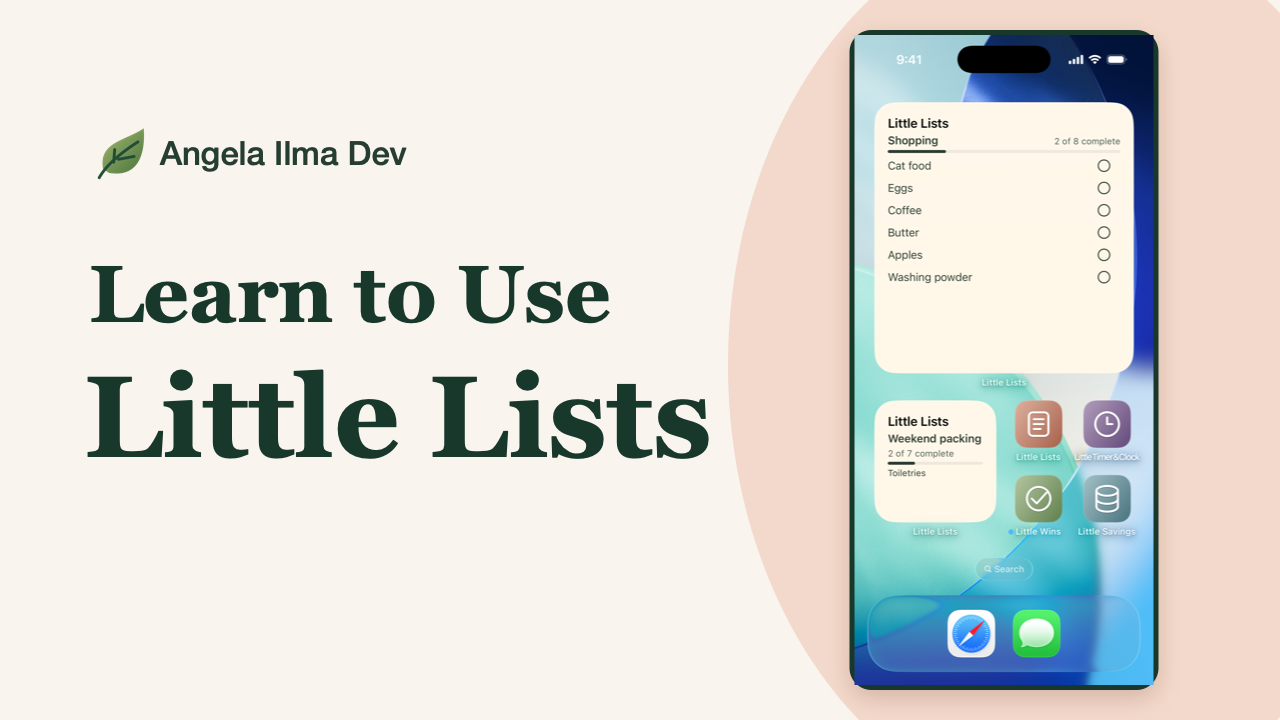
Tap a chapter to watch it here.
Using Little Lists
Home Screen Widgets
Widgets & Customisation
Add a widget
Touch and hold an empty space on the iPhone Home Screen. Tap Edit, then Add Widget, search for the app, swipe to choose a size and tap Add Widget. Tap Done when finished.
Choose a size and list
Small shows progress at a glance. Medium and large show more items and let you check them off. Touch and hold the widget, select Edit Widget and choose the list you want it to show.
Change colours or appearance
Open Settings → Colour theme. Botanical and Monochrome are free. Use Appearance to choose Light, Dark or Follow System.
Stack widgets
In Home Screen edit mode, drag a widget onto another of the same size. Swipe the stack to switch widgets. See Apple’s guide to adding widgets and editing stacks.
Plus & Troubleshooting
Compare Free and Plus
Free includes five lists, 25 items per list and up to two hidden lists. Plus removes those limits and includes all six colour themes.
Find a hidden list
Expand Hidden Lists on the Lists screen and unhide the list to see it in the main view and widget picker again.
Buy or restore Plus
In Settings, open Explore Little Lists Plus or Manage Plus. Follow the App Store prompts to buy, or tap Restore Purchases using the Apple Account that made the purchase.